Every gamer has been through this: you pull off the 1v5 clutch, the impossible no-scope, the last-second save that flips the whole match... and then it vanishes. Buried somewhere in forty gigs of unedited footage, or worse, never recorded at all because you forgot to hit the button. Making clips, streaming, sharing, and actually building a community around your gameplay usually means juggling five different tools that were never designed to talk to each other: a recording app, a separate streaming client, a video editor, an upload flow for every platform you want to reach, and a social feed that has nothing to do with gaming. Every handoff between those tools is a moment where your best play quietly dies inside a folder nobody ever opens again.
Cliggs exists to condense all of that into a single loop: play, stream, clip, share, compete. No more choosing between platforms, no more forgetting to hit record, no more losing an hour looking for the ten seconds that actually mattered. This post walks you step by step through how all of this works in practice — from the moment you create an account to the moment your best play is in front of a community that actually cares — and by the end, it should be clear why it's worth switching to this loop if you're currently piecing it together by hand.
1. 🔑 Sign-up and login
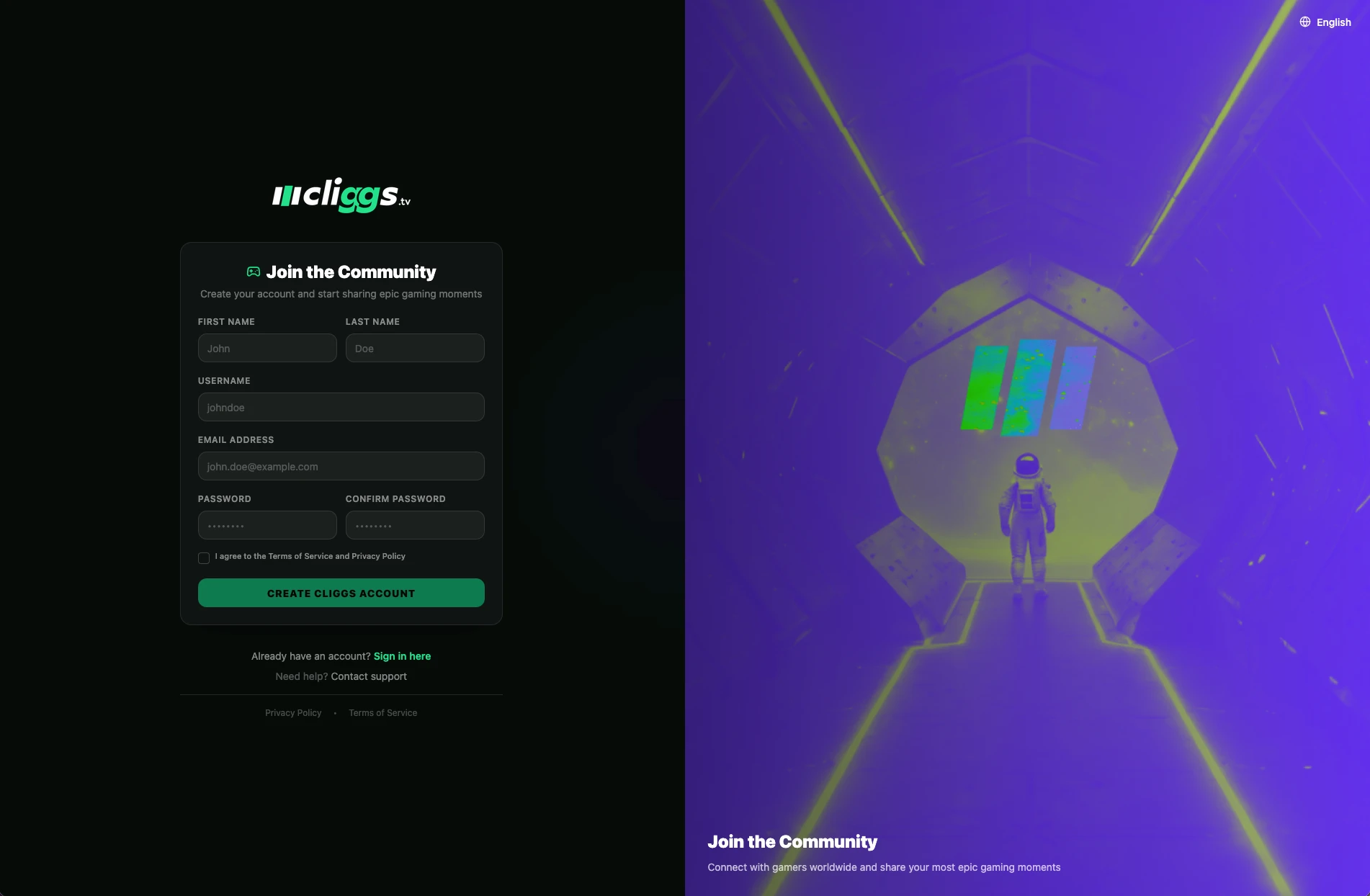
The first five minutes with any platform set the tone for everything that follows, so Cliggs keeps this part deliberately frictionless.
🔐 Several ways in, one identity
You can create an account the traditional way, with email and password, with email verification included so your account is secure from the start. But most people don't want to memorize yet another password, so Cliggs also supports single sign-on through the accounts you already use every day: Google, Discord, Facebook, Apple, Twitch, and TikTok. Log in with whichever is fastest for you, and you're in.
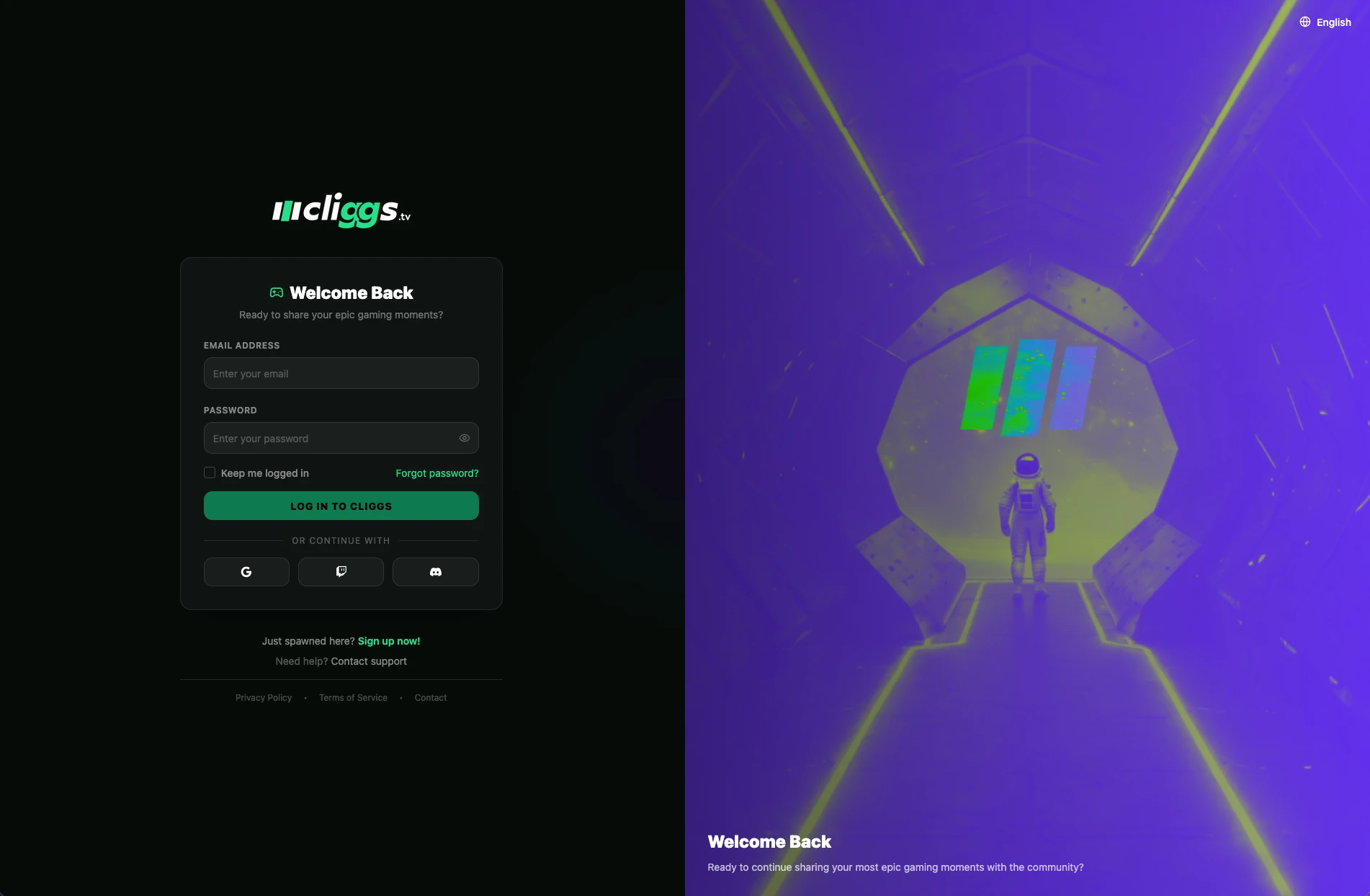
This matters more than it looks on paper. Gamer identity is scattered by default — your Discord is where your friend group lives, your Twitch is where you stream, your TikTok is where your short clips travel fastest. Instead of forcing you to pick one as "the" account, Cliggs lets you link several social accounts to a single profile. Your Cliggs identity becomes the hub, and the platforms you already use become the spokes connecting to it, instead of five disconnected islands of the same person.
🔁 Forgot your password? No dead ends
If you forget your password, the recovery flow is built to actually get you back in, not leave you stranded: you request a reset, receive a recovery code, set a new password. No need to open a support ticket for something this common.
🎟️ Invite codes and help when you need it
Cliggs supports invite codes at sign-up — if a friend or a creator you follow sends you one, you can redeem it as part of creating your account, which is a small but deliberate nod to the fact that gaming communities grow by word of mouth, not cold acquisition funnels. And if something goes wrong, there's a built-in support ticket form so you never end up emailing into the void.
👤 What you get once you're in
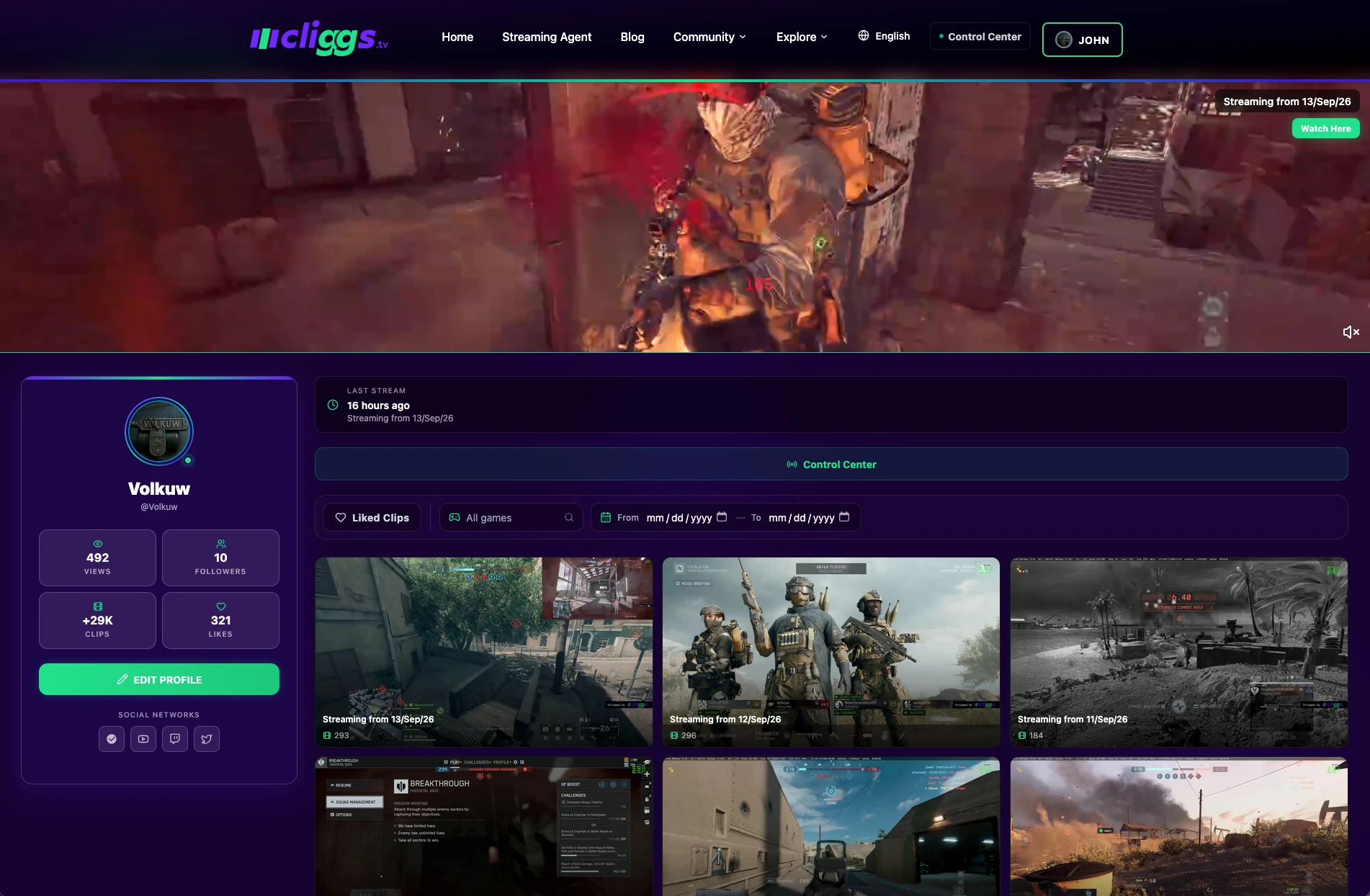
Once your account exists, you land on a real profile — not just a username and an avatar, but a page that represents your presence on the platform: your clips, your follower and following counts, and (if you choose to connect them) your actual in-game stats from supported titles like Battlefield 6. You can edit that profile any time, connect your social accounts, and start building it out even before you upload your first clip.
Everything you need to manage that presence is also a click away — click your username anywhere on the site and a quick menu pops up with My Profile (jump straight to your game stats and public page), Settings (customize your experience without having to dig through menus), and Logout when you're done with your session. Managing your account shouldn't cost you more effort than the account is worth.
⚙️ Gaming Settings: your whole account, on one screen
Settings is where the account-administration side of Cliggs lives, organized in a simple sidebar instead of scattered across menus:
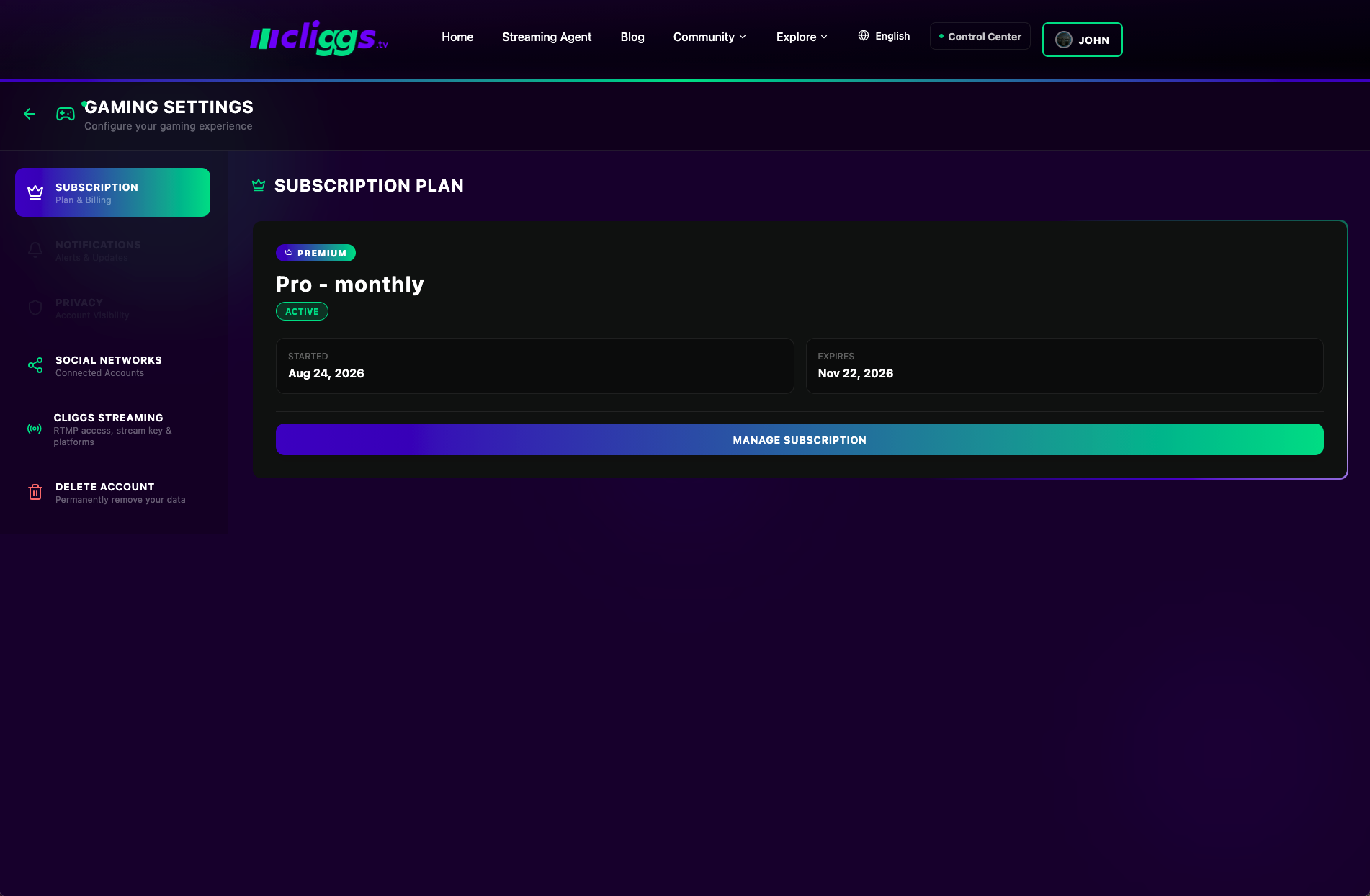
- Subscription shows your current plan (Free or Pro) front and center, including its status, start date, and renewal date, with one-click access to manage or change it.
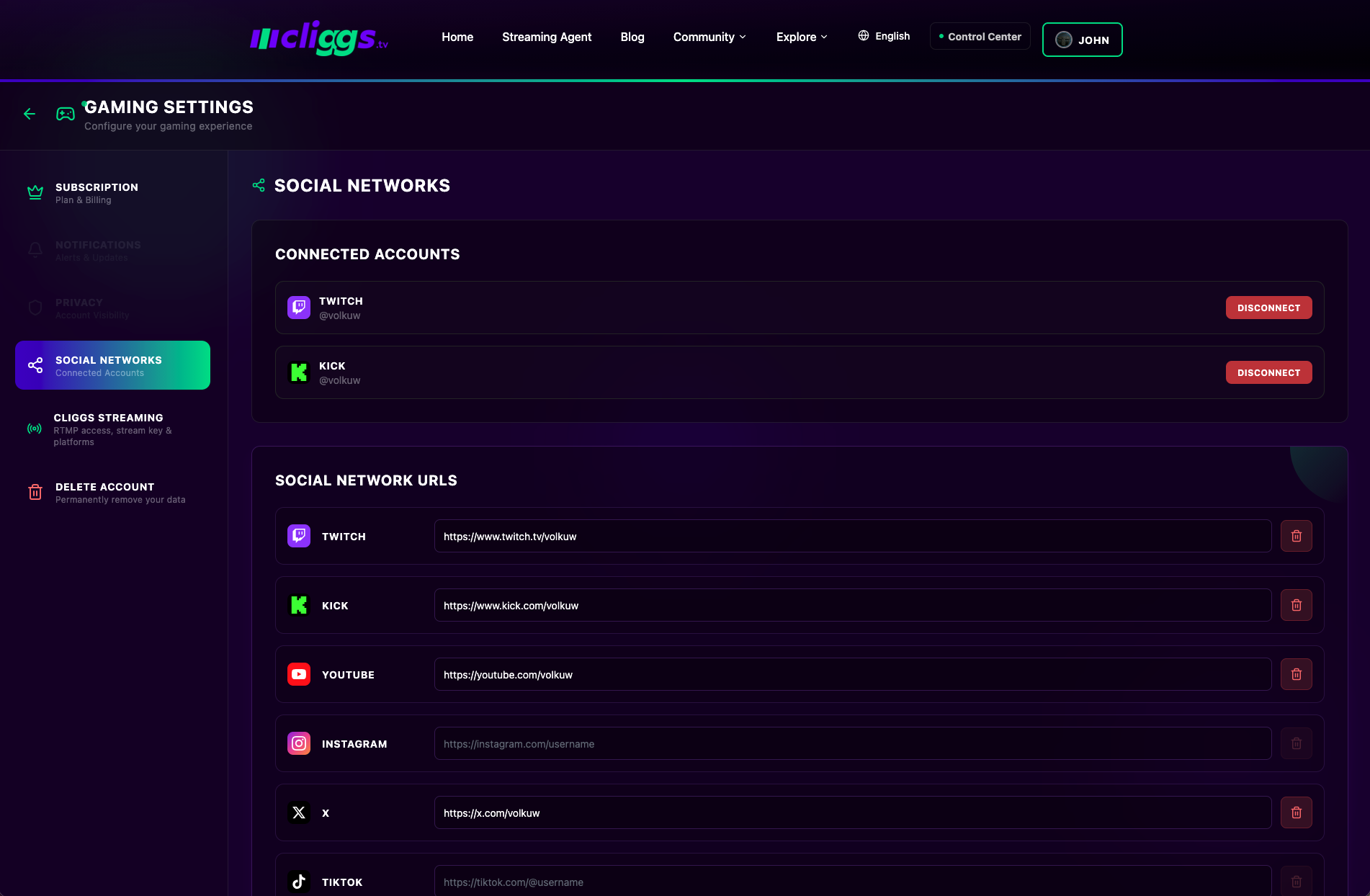
- Social Networks lets you connect and disconnect accounts like Twitch and Kick directly, and separately lets you add public profile URLs — Twitch, Kick, YouTube, Instagram, X, TikTok — so your Cliggs profile links out to everywhere else you post.
- Delete Account is also right there, clearly visible instead of buried three menus deep, with a clear, honest warning that it's permanent. Cliggs doesn't make it hard for you to leave — it just wants you to know exactly what you're choosing.
(Cliggs Streaming — the RTMP setup for connecting OBS directly — also lives in this same Settings sidebar. More on that in a moment.)
The whole point of this stage is that it should take you less time to read this section than to actually do it. Sign-up isn't where Cliggs wants your attention — gameplay is. So it gets out of the way fast.
2. 🎥 Setting up OBS and going live
This is where Cliggs stops being "just another clip-uploading site" and becomes the infrastructure for how you actually play and stream.
🔌 The companion app plugs into what you already have
If you already stream with OBS, you don't have to abandon that workflow to use Cliggs. Instead, you install the Cliggs desktop companion app — a lightweight bridge that connects to OBS through its WebSocket interface and talks to the Cliggs streaming relay in the background. You keep your scenes, your overlays, your keyboard shortcuts, your audio setup — everything you already tuned — and Cliggs plugs into that instead of replacing it.
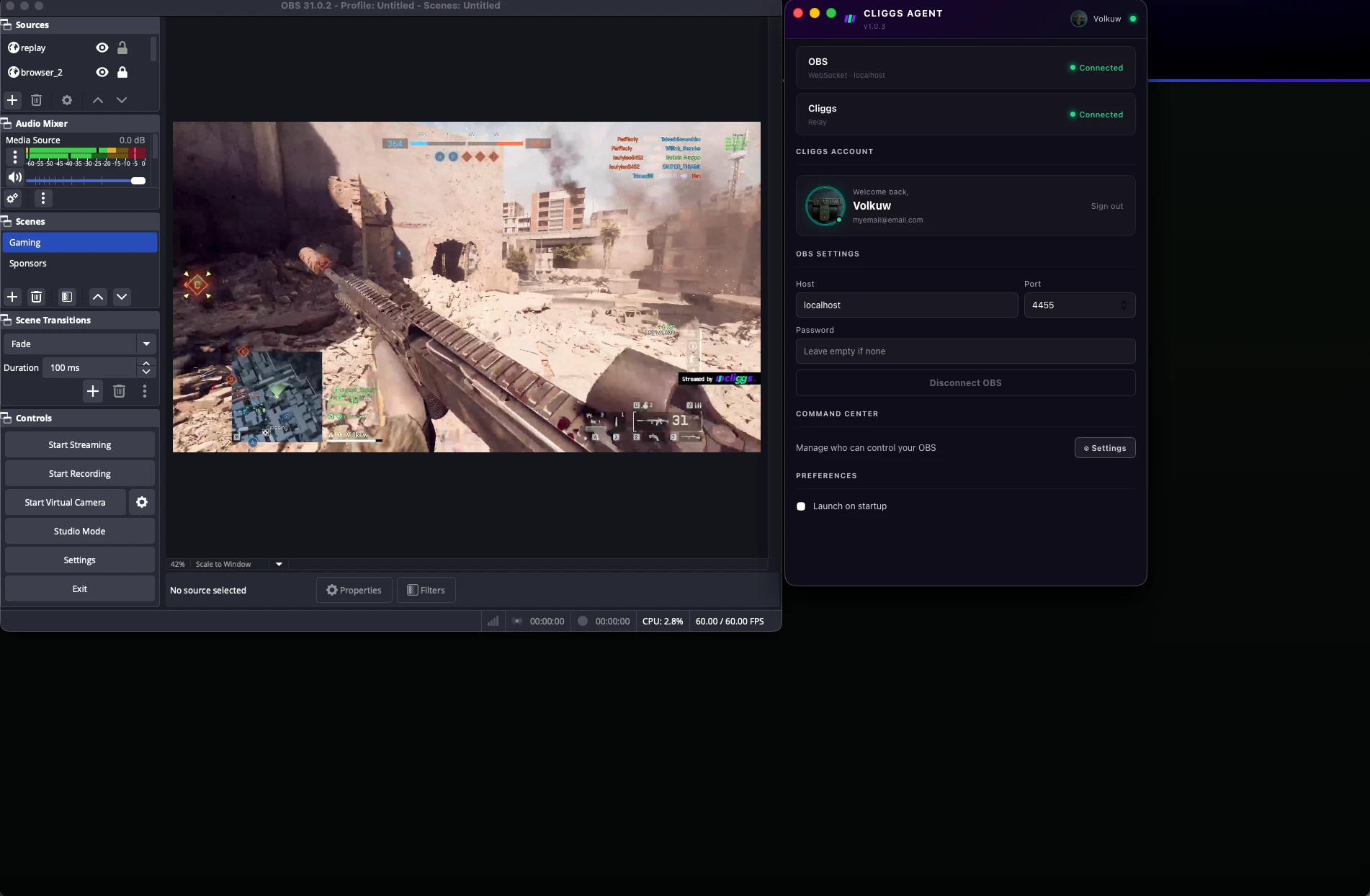
Connecting is a short, linear process, all within the Cliggs Agent app itself:
- Download and open Cliggs Agent (available for macOS and Windows). It shows two connection states right at the top: your local OBS WebSocket link, and the Cliggs relay itself — both start as "Disconnected."
- Log in with your Cliggs account — email and password, right inside the app.
- Enter your OBS WebSocket details in OBS Settings: host (
localhostby default, since OBS runs on the same machine), port (4455by default), and a password if you set one on OBS's WebSocket server — then press Connect OBS. - Once connected, the Cliggs relay switches to Connected, your account shows as logged in, and you're linked end to end.
From your side, streaming still feels like streaming. The difference is in everything that happens afterward.
📡 One stream, every platform, at the same time
Once you're live, Cliggs re-streams your broadcast to Twitch, YouTube, and Kick simultaneously. This is the multistreaming piece, and it solves a problem every streamer eventually runs into: audiences fragment across platforms, but your attention and energy don't multiply to cover them. Historically, "being on all three" meant running multiple encoders, burning extra CPU and bandwidth, and hoping your internet connection could take the hit. With Cliggs handling the relay, you stream once from OBS, and distribution to multiple platforms happens on Cliggs's infrastructure, not on your gaming PC.
In practice, this means:
- Your regular Twitch followers, your YouTube subscribers, and your Kick followers can all watch the same live session without you doing anything different.
- You're not forced to pick one "main" platform and treat the others as an afterthought.
- Your local machine saves its resources for what actually matters — the game itself.
🛡️ Command Center: who else can touch your OBS
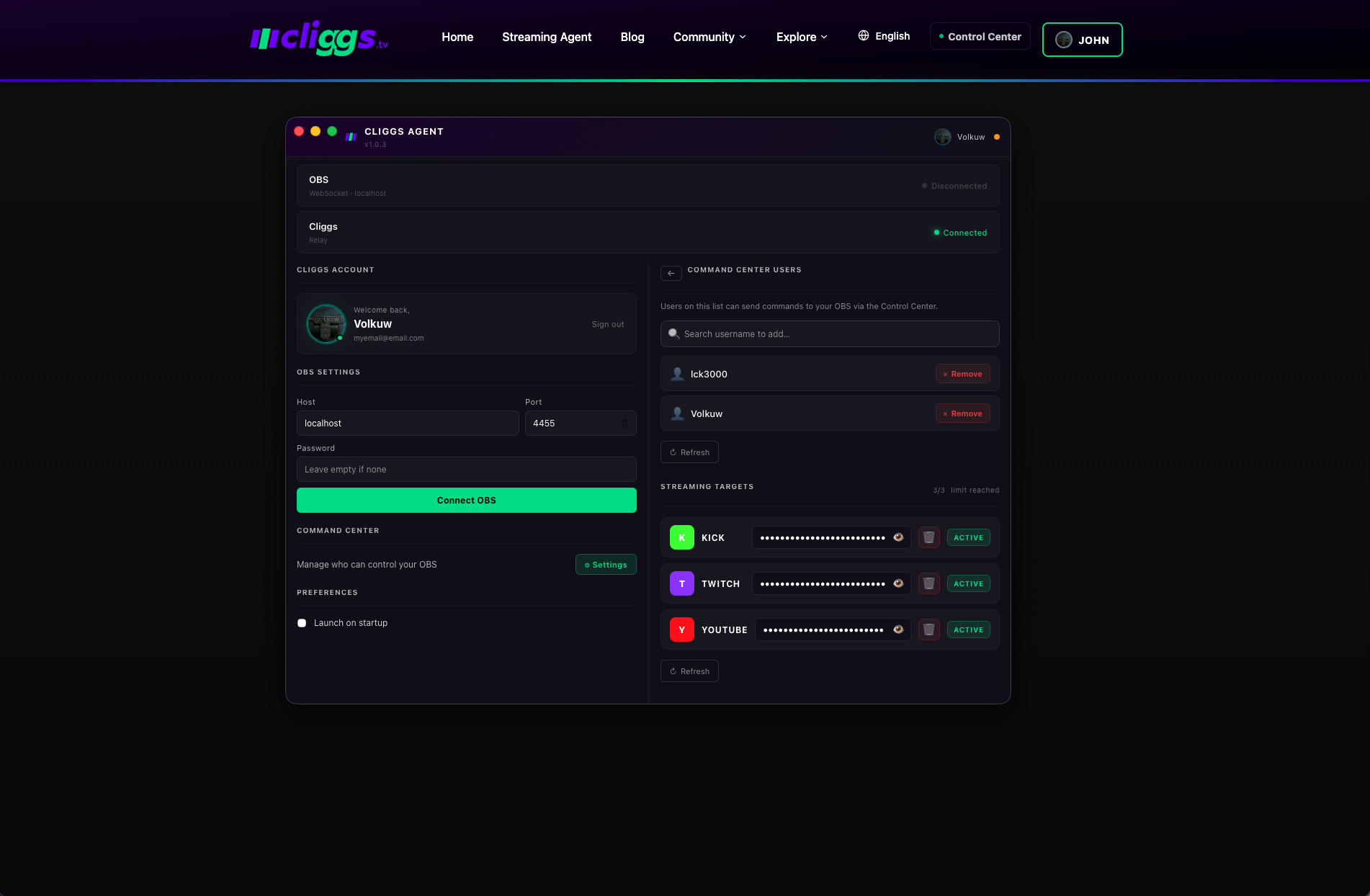
Once you're logged in, a Command Center section shows up in the Agent, right below your OBS connection settings — and it's worth not confusing it with Control Center (the live panel, covered next). Command Center is about access and destinations:
- Command Center Users: a whitelist of exactly who has permission to send commands to your OBS through Control Center. Search for a username, add them, remove them whenever you want — nobody else gets control by default.
- Streaming Targets: your connected destinations — Kick, Twitch, YouTube, and more — each with its own stream key (hidden, with a button to reveal it), an active/inactive status, and an option to remove it. There's a limit on how many destinations you can run at once, shown right in the panel (for example, "3/3 limit reached").
Think of Command Center as the settings that decide who can touch your stream and where it goes out. Control Center, below, is the live surface you actually use while streaming.
🕹️ Control Center: your whole stream, in one panel
Once Cliggs Agent shows both OBS and the Cliggs relay as Connected, the Control Center page comes alive. Open it while the agent is still checking and for a moment you'll see "Checking agent status..." — then it turns into a fully loaded control surface, with your streaming destinations (Twitch, YouTube, Kick) listed right at the top, next to an End broadcast button.
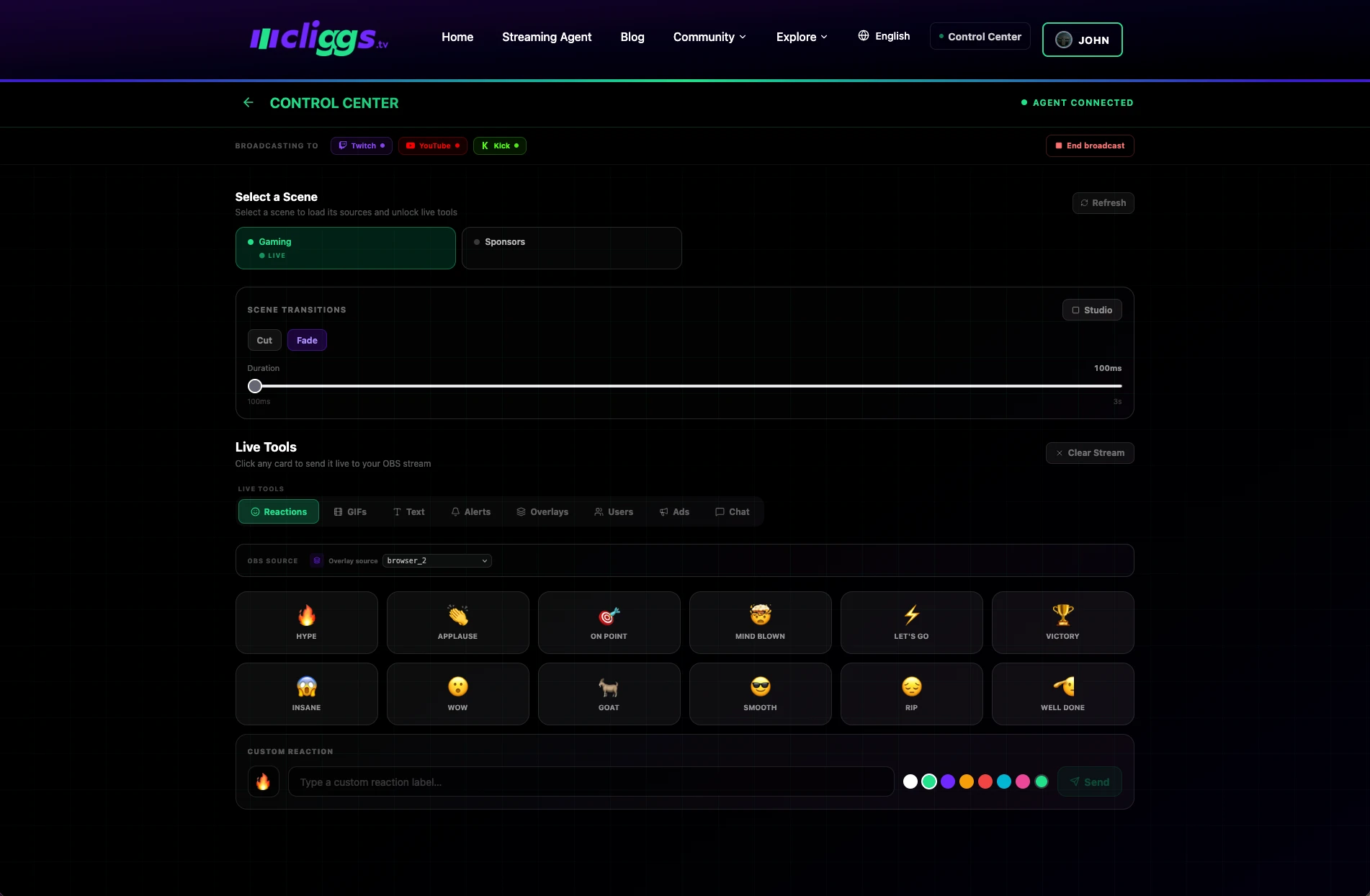
From there, everything you'd normally handle inside OBS itself, or in some separate alerts tool, lives in one place:
- Select a Scene. Every scene from your OBS setup — Gaming, Sponsors, whatever you've built — shows up as a clickable card, with a LIVE tag on whichever one is currently on air. Click another one (say, switching from Gaming to a Sponsors scene) and it goes live instantly, transition included.
- Control your Scene Transitions. Choose Cut or Fade and adjust the exact duration with a slider — the same control you'd normally have to dig for in OBS's own settings menus.
- Fire Live Tools straight into your stream. A row of tabs — Reactions, GIFs, Text, Alerts, Overlays, Users, Ads, Chat — puts everything within reach, and each one hits OBS instantly, as a browser source, with no plugins needed and no switching between windows. A few are worth calling out:
- Reactions comes with a full grid (Hype, Applause, On Point, Mind Blown, Let's Go, Victory, Insane, Wow, Goat, Smooth, RIP, Well Done) plus a custom reaction field with its own color picker.
- GIFs lets you search for and fire off an animated GIF straight into your stream in the moment.
- Users also works as a clip finder — search for any Cliggs creator by username, open their clips, and send one live as a replay callout inside the stream (the same "Replay — Powered by Cliggs" overlay you'll see creators use to show off a great play mid-broadcast).
- Ads turns Control Center into a lightweight ad-management tool: pick a format (Sponsor, Promo Code, Product, Social, Ticker, Corner), fill in the content, price, image, and link, set an accent color and display duration, preview exactly how it'll look, and send it to OBS when you're ready.
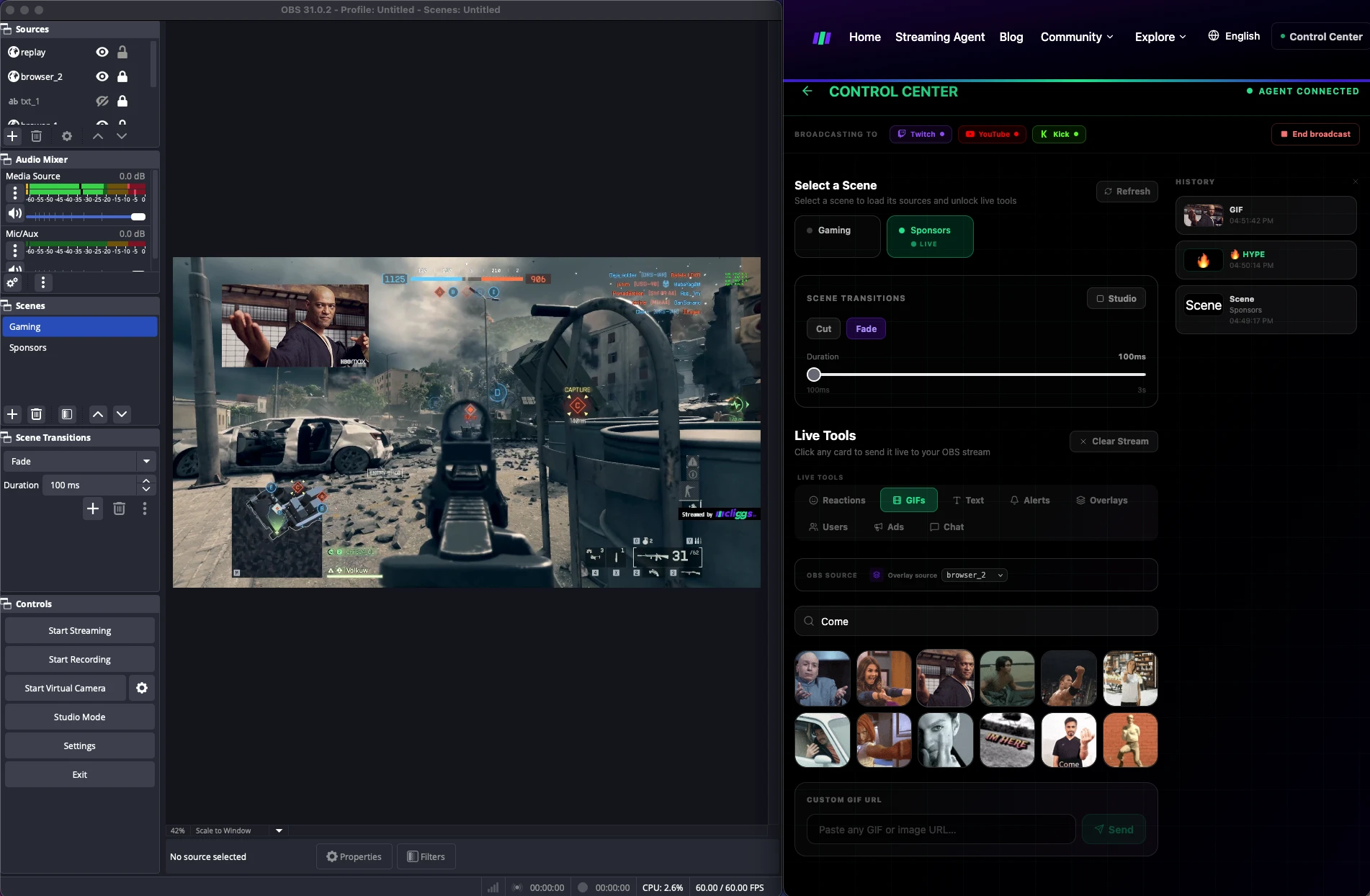
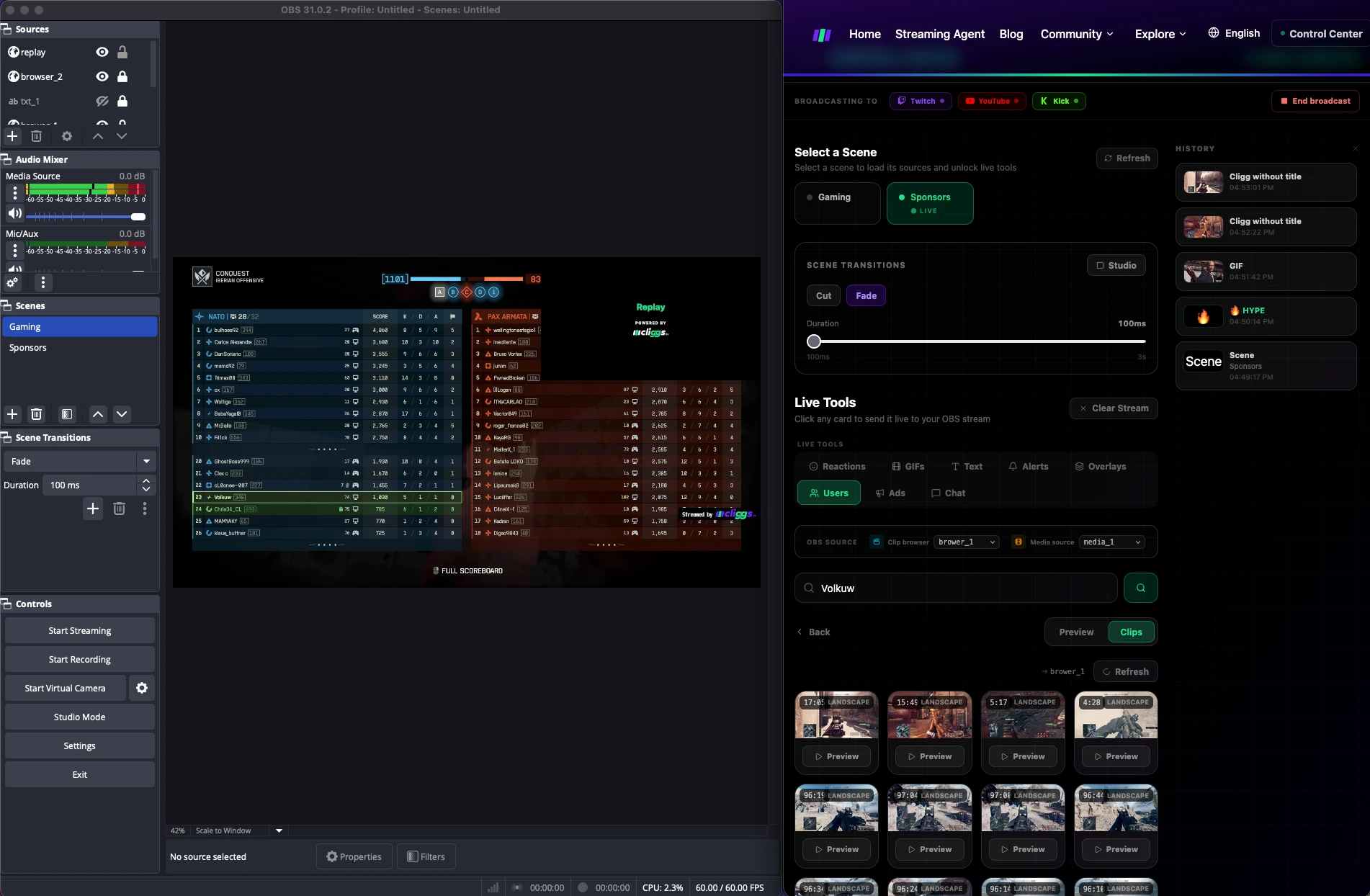
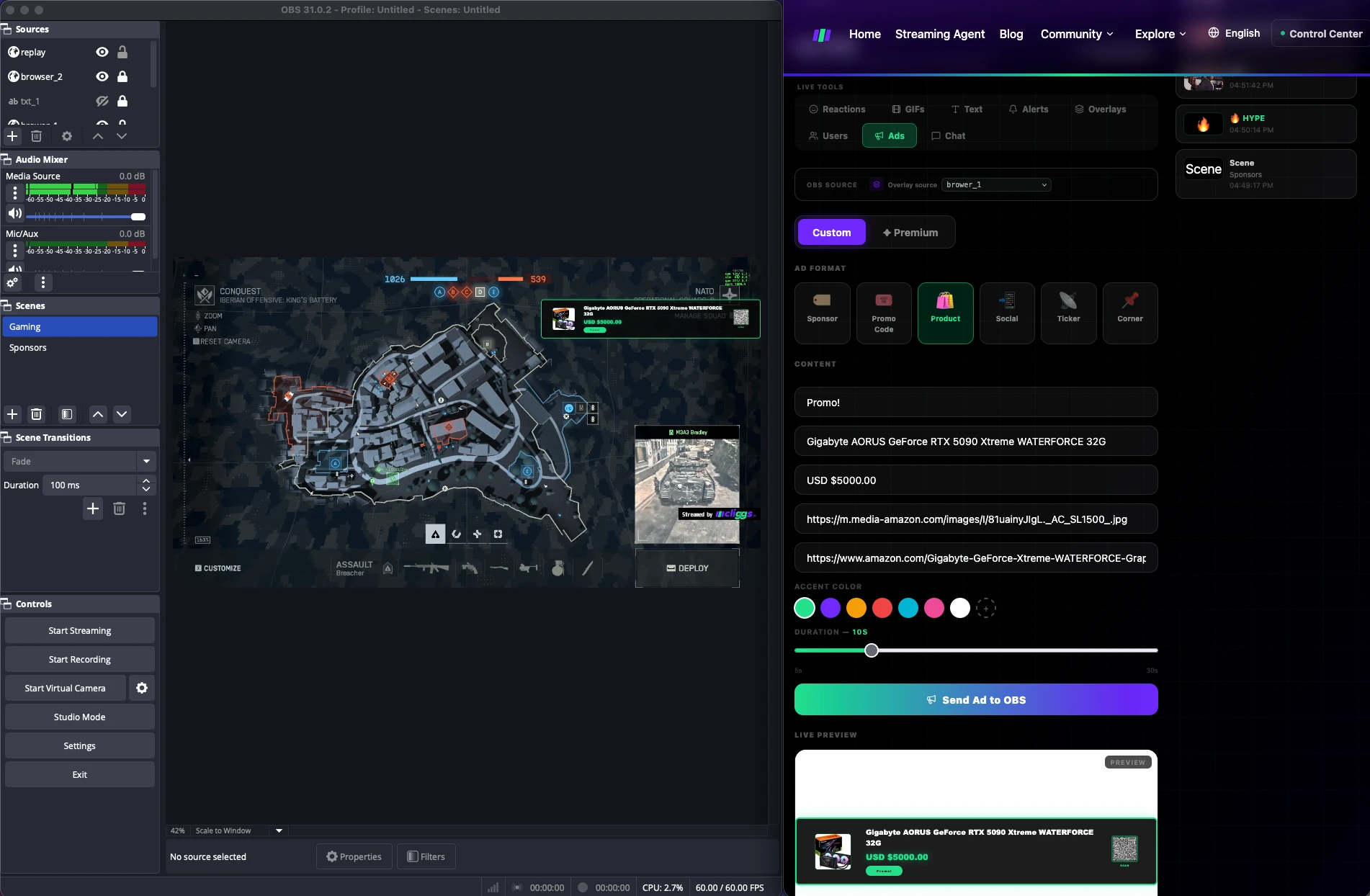
- Keep a history of what you've fired. A History panel on the side logs every action — which scene, which tool, and exactly when — so you can see what just went out without having to guess.
The philosophy is the same one that runs through the rest of Cliggs: Control Center doesn't ask you to replace OBS or rebuild your scenes — it sits on top of what you already have and gives you a single surface to manage the parts of streaming that used to mean five separate windows. If you've ever missed a scene change or a browser-source alert in the middle of a clutch moment because it lived in a different app from everything else, this is the fix.
⏺️ Recording happens automatically, in the background
Here's the part streamers tend to like the most once they stop thinking about it: Cliggs automatically records your stream the moment you go live. You don't need to remember to hit record, you don't need a separate local recording pipeline, and you don't have to worry about losing footage if OBS crashes mid-session (the encoder and the recording don't depend on the same fragile assumption that you'll never forget a step).
That recording becomes the raw material for the next stage — and it's also a safety net in its own right. Had a session where chat was going crazy but you don't remember exactly what happened at minute 47? It's there. Want to go back later and find a moment you didn't even notice was clip-worthy at the time? Also there.
📝 A few practical notes
- You need to already have OBS installed and set up with your usual scenes/sources — Cliggs doesn't replace your capture setup, it extends it.
- The companion app runs alongside OBS, not instead of it, so your existing plugins, filters, and overlays keep working exactly as they do today.
- Since recording and re-streaming happen through the Cliggs pipeline once you're live, there's no separate "remember to also record locally" step that can slip your mind.
If you've ever lost a stream because a local recording crashed, or skipped streaming to a third platform because setting up a second encoder wasn't worth the effort, this stage alone is usually the one that changes people's minds about switching.
3. ✂️ Automatic clip suggestions (and full manual control whenever you want it)
This is the feature that gives Cliggs its name, and it's the part that turns "I have hours of footage somewhere" into "here's my best play, published, tagged, and live" in a few clicks instead of a few hours.
🤖 How the suggestion pipeline works, conceptually
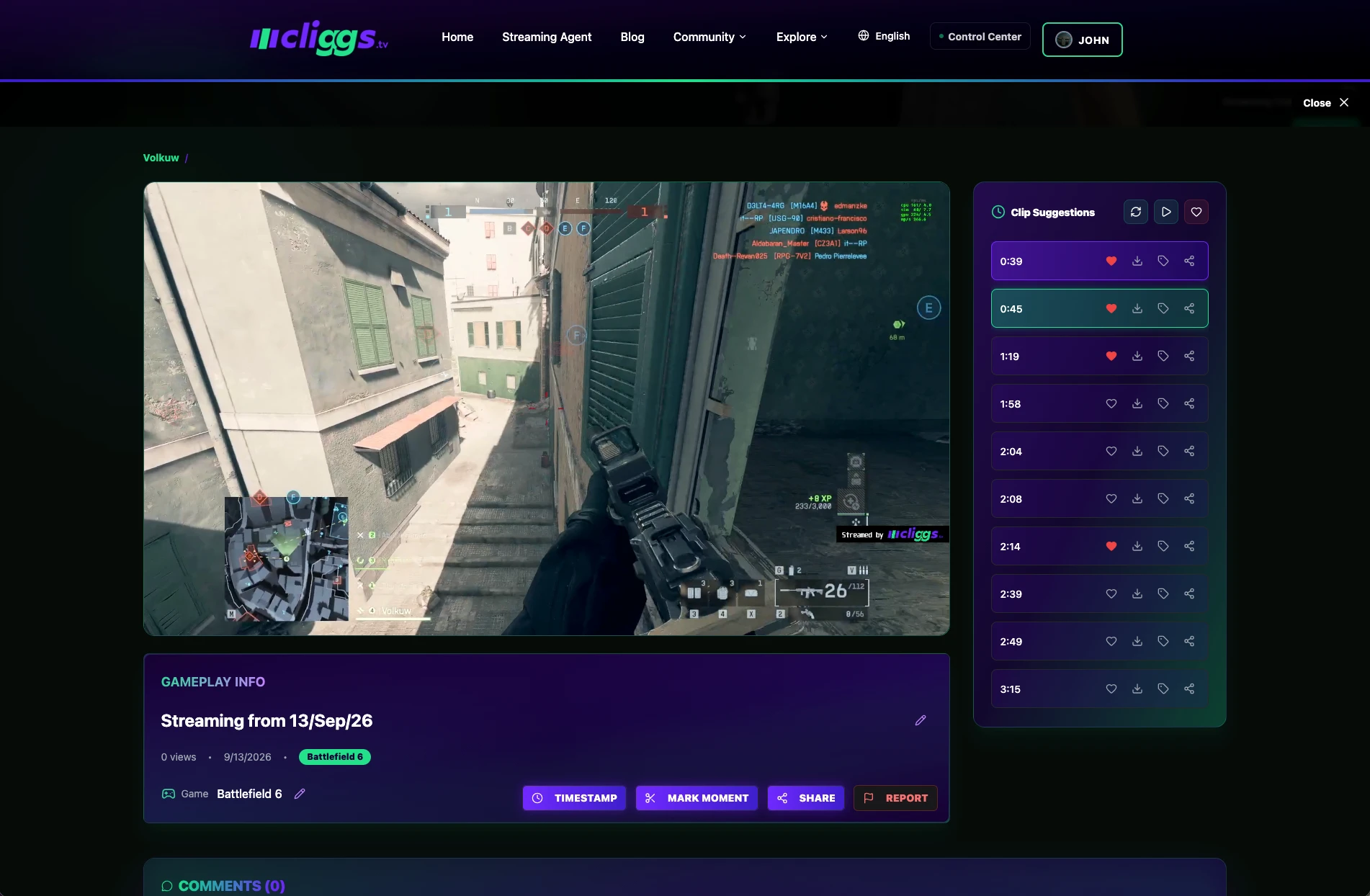
While you play, Cliggs's streaming pipeline watches your session and automatically flags likely highlight moments — nearly in real time, not after you've already logged off. Open any gameplay session and you'll see a Clip Suggestions panel right next to the video player: a running list of timestamps (0:39, 0:45, 1:19, and so on) that Cliggs has already found for you, each ready to favorite, download, tag, or share with a single click. By the time your session ends, the best parts are already waiting for you instead of hiding somewhere in an hour of unedited footage. Other gameplay sessions on your profile even show a "finds" counter, so you can see at a glance how many standout moments Cliggs already detected before you even looked. Support for more titles keeps growing, so exactly which games get automatic detection will keep expanding over time.
This matters because the number one reason a great gameplay moment never gets shared isn't a lack of great gameplay — it's how tedious it is to find afterward. Most clips die in a folder because scrubbing through forty-five minutes of raw footage to find fifteen seconds of magic just isn't worth it on a Tuesday night. Automating that first filter removes the actual bottleneck.
🎯 You're never locked into what the algorithm picked
The automatic suggestions are a starting point, not a ceiling. If Cliggs's timeline missed something, or you want a moment it didn't flag, the Mark Moment button right below the video player lets you cut your own clip from any timestamp, instantly. A Timestamp button lets you jump to exact moments and reference them, and full manual control sits right alongside the automatic suggestions — you're never stuck with a take-it-or-leave-it.
✨ Polishing a clip before you publish it
Once you have a moment you want to share — suggested or cut by you — Cliggs gives you the basic tools to make it presentable without needing a separate video editor:
- Thumbnails: add or choose a thumbnail so your clip actually earns clicks, instead of relying on an auto-generated frame that might catch you mid-blink.
- Tagging: tag the clip by game and content, so it's discoverable by people searching or browsing for exactly that kind of moment.
- Post-publish editing: you're not locked in once you publish — clips can be edited, and if you accidentally delete something, deleted clips can be restored instead of being lost for good.
🚀 Getting it out into the world
Publishing a clip on Cliggs makes it part of the platform's feed and search — but sharing doesn't have to stop there. Cliggs supports one-click export directly to TikTok, so a highlight that lives natively on Cliggs can also ride the short-form wave without you having to re-upload and reformat it by hand. You can also download your own clips (or ones you've liked) if you want the original file for something else entirely — a montage, a highlight reel, an off-platform submission.
🧹 Keeping the clip pool healthy
Clip platforms live or die based on the quality of what's actually worth watching on them, so Cliggs includes a simple way to report inappropriate clips, keeping the space focused on what it should be: genuinely good gaming content, not spam or abuse.
❤️ Why this stage is the heart of Cliggs
Take the sign-up speed of the first stage and the effortless recording of the second, and this is where they pay off. By the time you actually sit down to review a session, Cliggs has already done the tedious part. What used to be "maybe this weekend I'll go find that clip" becomes "it's already there, tagged and ready to publish." That shift — from clipping being a chore to clipping being basically free — is the whole premise of the platform.
4. 🌐 A community built around playing, not around watching ads
A clip nobody sees is just a file. The fourth piece of Cliggs is what happens after you hit publish — who finds it, who engages with it, and what it connects you to.
👍 The basics: likes, comments, views
Every clip on Cliggs can be liked, disliked, and commented on, with a view counter included so you can actually see whether something landed. It sounds obvious, but it's the foundation everything else is built on — without a real feedback loop, clipping is a monologue. With one, it's a conversation.
🔍 Getting discovered without needing an audience first
New creators face the same problem everywhere: nobody sees your content until people are already seeing your content. Cliggs works against that with several distinct discovery surfaces:
- A public clip carousel/feed on the platform's front door, so good clips can surface even without a following behind them.
- Trending clips and GIFs, highlighting what's currently landing with the community, not just what's newest.
- A "top creators" ranking, giving visibility to people uploading standout content beyond their current follower count.
- Unified search across people, games, events, and clips — plus more specific search for clips, GIFs, or gaming "moments" — so people looking for a specific type of content (a specific game, a specific type of play) can actually find it instead of scrolling forever.
🪪 Following, profiles, and your own footprint
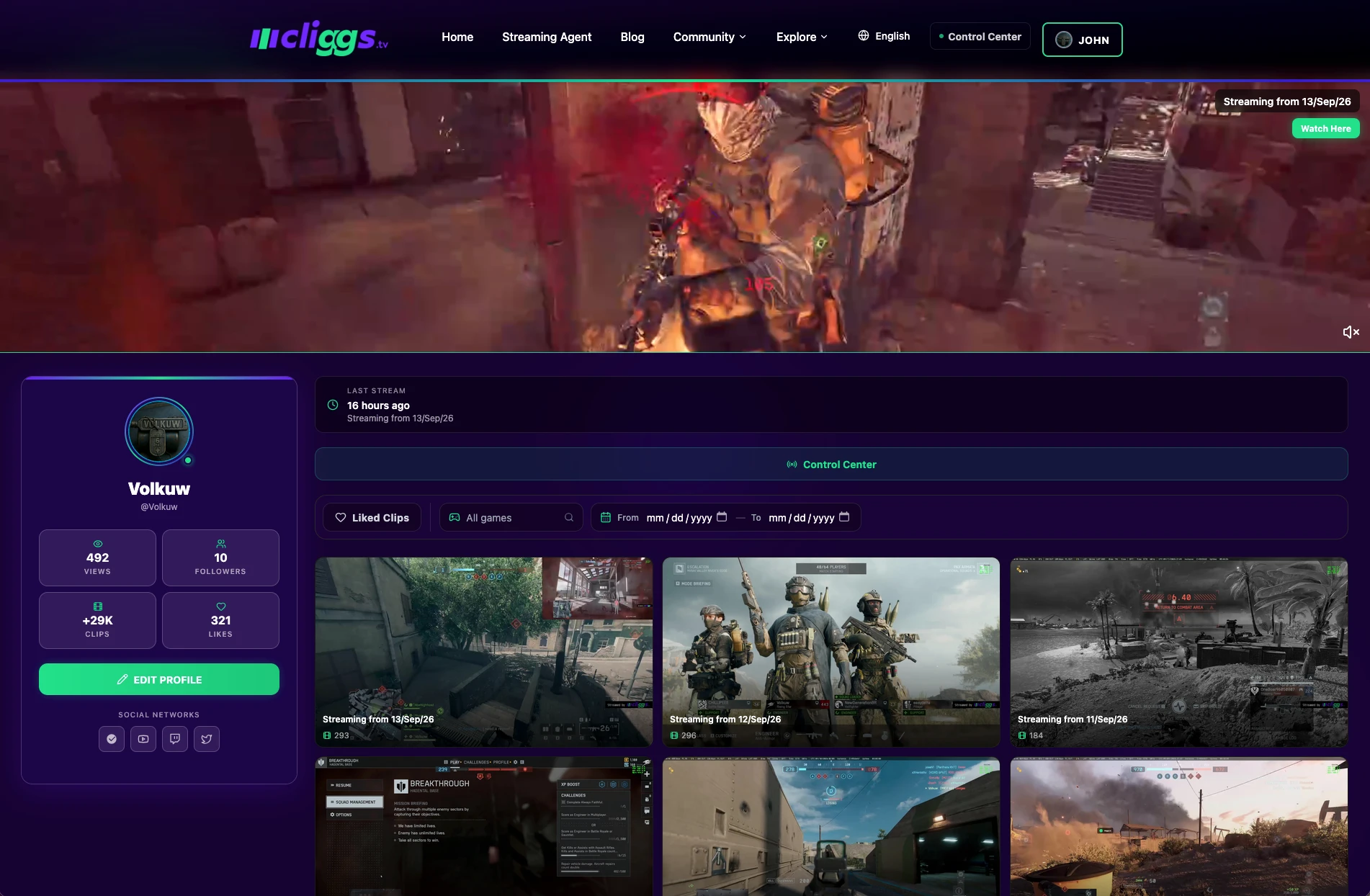
You can follow the players and creators you want to keep up with, and build your own following the same way. Your My Profile page is where all of that lives at a glance: view count, followers, total clips, and likes are right at the top, with a full grid of your gameplay clips below — filterable by game or date, with a dedicated Liked Clips view for everything you've favorited from other creators. Your linked social accounts are right there too, and Control Center is one click away if you go straight into a stream. A platform-wide leaderboard/ranking gives you a sense of where you stand against everyone else. If you connect your in-game stats, your profile becomes more than a clip archive — it's a snapshot of who you actually are as a player, backed by the plays that prove it.
You can also block users when you need to, because a community feature isn't complete without the ability to control who you actually interact with.
🏆 Teams, tournaments, and events — competing, not just posting
This is where Cliggs goes further than a typical clip site. Instead of stopping at "upload and wait to see if anyone engages," the platform has a real competitive structure built in:
- Teams: create or join a team, with team leaderboards and member management, so your gaming identity can extend beyond a single profile.
- Gaming events and tournaments: browse events and matches with full detail pages, watch brackets and standings, and follow how a tournament unfolds.
- Submitting clips to events: instead of tournaments and clips being separate systems, you can submit clips directly to specific gaming events — your best plays from a tournament run become part of the tournament's own record, not just your personal feed.
- Following your favorite games: browse the games Cliggs supports and follow the ones you care about, so events, clips, and community activity for those titles come straight to you.
💬 Why community is a feature, not a side effect
Many platforms treat "community" as whatever accumulates around content once enough people show up. Cliggs treats it as infrastructure: discovery surfaces that don't require an existing audience, competitive structures that give clips a purpose beyond a like counter, and identity tools (profiles, stats, teams) that make your presence on the platform feel like yours, not just the algorithm's feed. The result is a place where publishing a clip isn't shouting into the void — it's dropping something into a system actually built to circulate it to the people who'll care.
5. 🔥 Why Cliggs, and not somewhere else?
By this point the shape of the answer should be obvious, but it's worth saying directly: most alternatives force you to choose. Stream on one platform. Clip on another app. Edit somewhere else. Share on yet another feed. Hope your community follows you across all four. Every one of those handoffs is a place where footage gets lost, momentum dies, and the fun part of gaming — showing off the moment that made your session memorable — turns into a chore you always put off.
Here's what actually sets Cliggs apart:
🎮 Built for gaming, not retrofitted afterward. Generic video and clip platforms have to guess whether your content is "engaging" using signals designed for cooking videos and vlogs. Cliggs is gaming-first from the ground up — highlight detection tuned for gameplay moments, tagging by game and title, in-game stats integration, and tournament infrastructure that simply doesn't make sense for a generic platform to build.
🌍 One setup, every platform. Connect OBS once through the companion app, and your stream goes out to Twitch, YouTube, and Kick simultaneously — no extra encoders, no extra local CPU load, no extra effort every time you go live. You stop choosing which audience gets your attention and just... reach all of them.
🕹️ One panel for everything mid-stream. Control Center replaces the usual pile of separate tools — a chat client, an alerts box, an overlay manager — with a single live panel that fires straight into OBS. No plugins, no window-switching, no rebuilding scenes you've already tuned.
✂️ Clips find themselves. Automatic highlight detection means your best moments don't stay buried in raw footage waiting for a free afternoon that never comes. The tedious part — finding the moment — is already done before you even sit down to watch.
🤝 A community, not just a feed. Teams, leaderboards, tournaments, and events give your clips somewhere to matter beyond an engagement metric. You're not just posting into a scroll — you're part of a structure built around competing, following, and belonging to something.
🪪 One identity, everywhere you already are. Log in with the accounts you already use, link them together, and let your Cliggs profile become the hub that ties your Discord, your Twitch, your TikTok, and your game stats into one coherent presence — instead of five disconnected footprints of the same person.
🎯 The core idea
Play. Stream. Clip. Share. Compete. In most setups, that's five separate tools, five separate logins, and five different places where momentum can die. On Cliggs, it's one loop — designed from sign-up onward to get out of your way and let the gameplay speak for itself.
Whether you're a viewer looking for gaming highlights actually worth watching, or a streamer tired of juggling a recorder, an editor, a multistreaming tool, and an upload checklist for every platform, Cliggs was built to make all of that feel like one thing instead of five.
Right now, somewhere in your last week of gameplay, there's a moment worth showing people — and it's either waiting for you in Cliggs's Clip Suggestions, or it's buried in a folder you'll never open again. Signing up takes less time than it took to read this post. Sign up for Cliggs and let's find out what you've been sitting on.