Cutting a clip usually means opening an editor, finding the right second, exporting, and uploading it somewhere. With the Cliggs MCP, you skip that. You tell an AI assistant like Claude or ChatGPT what you want, in plain language, and it does the work: finds your latest gameplay, tags it with the right game, and gets your clip ready.
There's nothing to download or install, and connecting takes less than a minute.
🧩 What's an MCP?
Normally, an AI assistant can only talk. An MCP is a bridge that lets it actually do things in another app. The Cliggs MCP connects your assistant to your Cliggs account, so when you ask it to look up a recording or tag a clip, it really happens on Cliggs.
🔌 How to connect
It works in both Claude and ChatGPT. Both use the same address:
https://mcp.cliggs.tv/mcp
Connect with ChatGPT
- Open Settings → Plugins and click Browse directory.
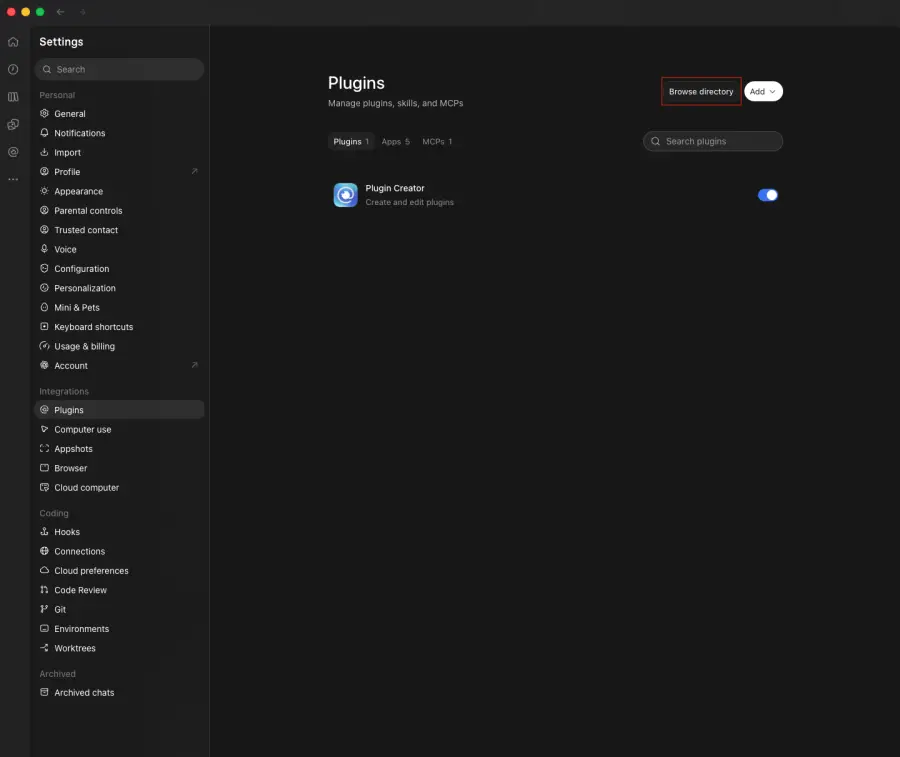
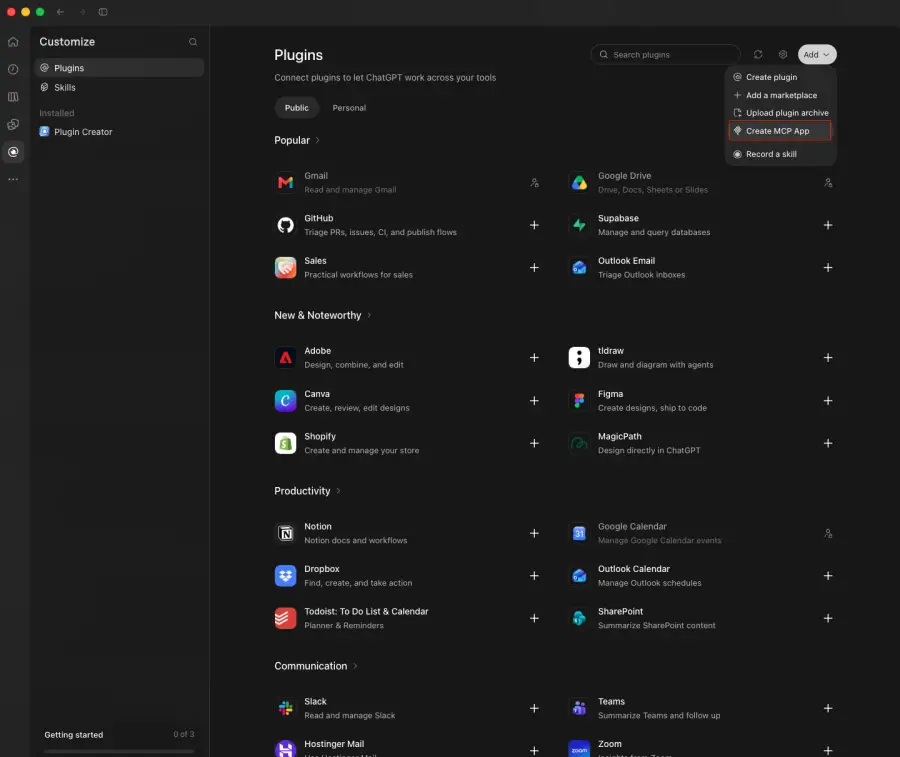
- Click Add (top right), then Create MCP App.
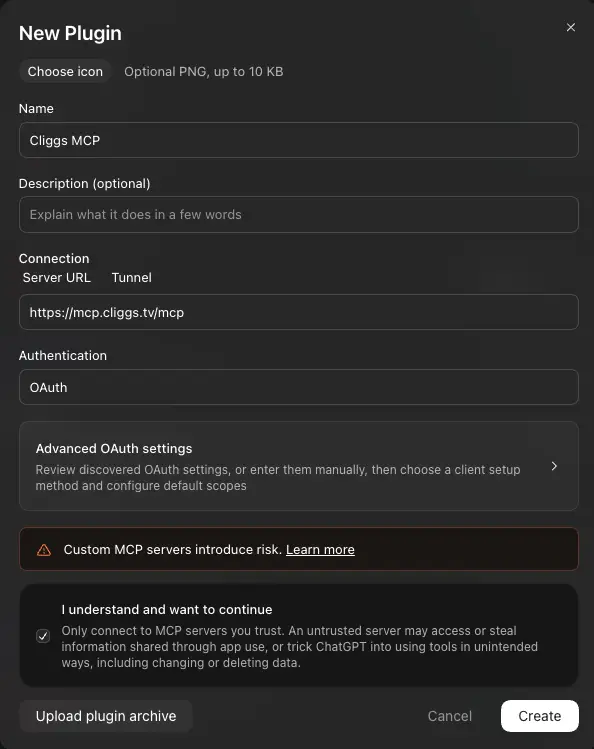
- Give it a name like "Cliggs MCP", paste the address above in Server URL, and make sure Authentication is set to OAuth. Tick "I understand and want to continue", then click Create.
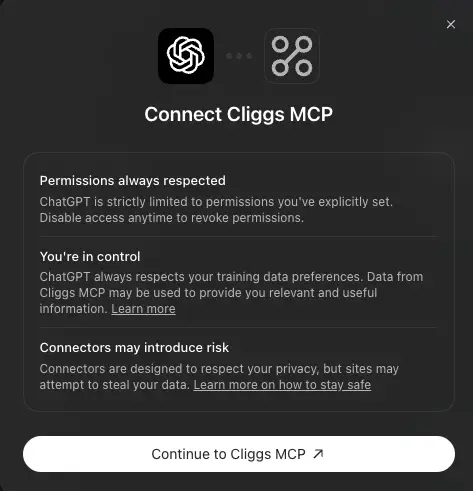
- ChatGPT asks you to connect. Click Continue to Cliggs MCP.
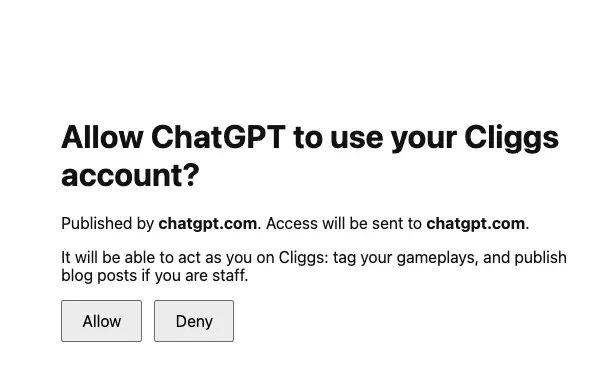
- Click Allow to let ChatGPT use your Cliggs account.
-
Cliggs shows you're signed in. Click Continue.
-
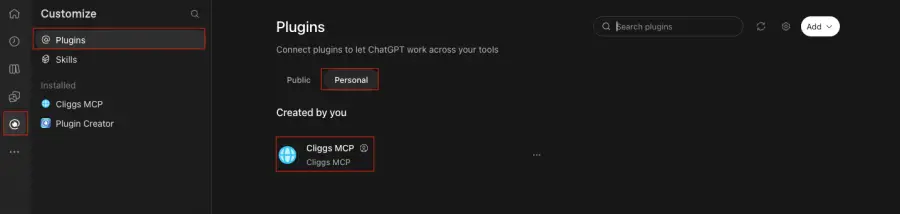
Done! Your connection now shows up under Plugins → Personal.
Connect with Claude
- Go to Settings → Connectors → Add custom connector.
- Paste the address above and choose Sign in.
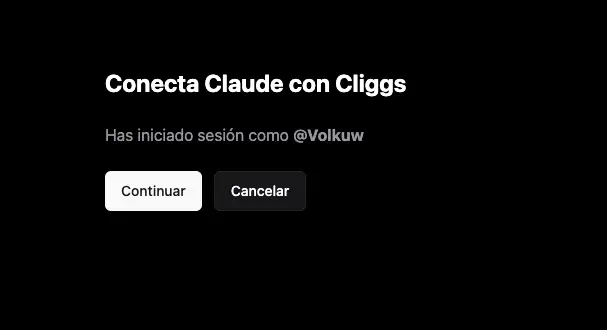
- Cliggs shows you're signed in. Click Continue.
That's it. No codes to copy, no extra setup. From then on, the assistant acts as you, with access to your own account only.
Menu names can change as these apps update, so if something looks different, search the app's help for "add a custom connector" or "add an MCP server."
💬 What you can ask for
You don't need to learn any commands. Just say what you want:
"What are my three most recent recordings?"
The assistant shows you your latest gameplays.
"The second one is Battlefield. Make a clip of the ace I got around 45 seconds in."
It sets the game on that recording and prepares your clip: vertical, blurred background, Cliggs logo included.
"Tag everything in the first five minutes as clutch."
It adds your tags to the clips from that part of the recording.
No editor, no scrubbing through a timeline, no exporting.
🛠️ What it can do
| What it does | You could say |
|---|---|
| Finds your latest recordings | "Show me my latest gameplay." |
| Sets which game a recording is from | "That last recording is Battlefield." |
| Tags your clips | "Tag the first 5 minutes as clutch and bazooka." |
| Prepares a vertical clip | "Clip from 20 to 30 seconds of my last recording." |
| Checks the connection | "Is the Cliggs connection working?" |
🧠 Good to know
- Clips are up to 60 seconds long. Perfect for Reels, Shorts, and TikTok.
- Making the clip file needs an assistant that can work on your computer, like Claude Code. In the regular chat apps, the assistant prepares everything and gives you simple instructions to finish the clip.
- Tags are short. Up to 5 tags per request, a few words each, like "clutch" or "bazooka."
- Only you can see and change your stuff. The assistant can only do what you could do yourself on Cliggs.
🚀 Try it
Add the connector, sign in, and ask: "What are my latest recordings?" From there, just keep talking to it. 🎮