How to Use the Cliggs Streaming Agent and Control Center 🎮🎥
If you stream, you already know the problem: your production is scattered across too many windows. OBS is running on your desktop, your phone is next to you for chat, and if you want to drop a clip into the stream, you're tabbing out to find the file, trimming it, and hoping you don't miss the moment while you do it. None of that is remote, and none of it is fast.
The Cliggs Streaming Agent and Control Center exist to collapse that into one loop: connect once, then run your whole production, scenes, audience tools, and clips, from a browser tab, anywhere. This post walks through how it works end to end, based on a full walkthrough of the app and the web dashboard.
📥 Download and install the Streaming Agent
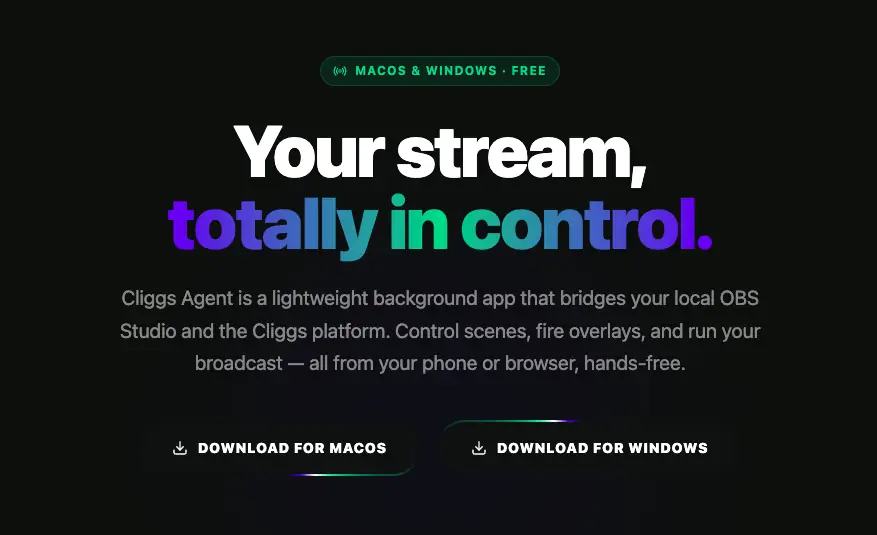
The Streaming Agent is Cliggs' desktop companion app, and it's the bridge between OBS and everything else. You'll find it from the main navigation menu under Streaming Agent, which takes you to cliggs.tv/agent. It's free for macOS and Windows, a lightweight background app, no bloated install. Grab the build for your OS, run the installer, and you're ready for setup.
🖥️ Inside the app: what you'll see
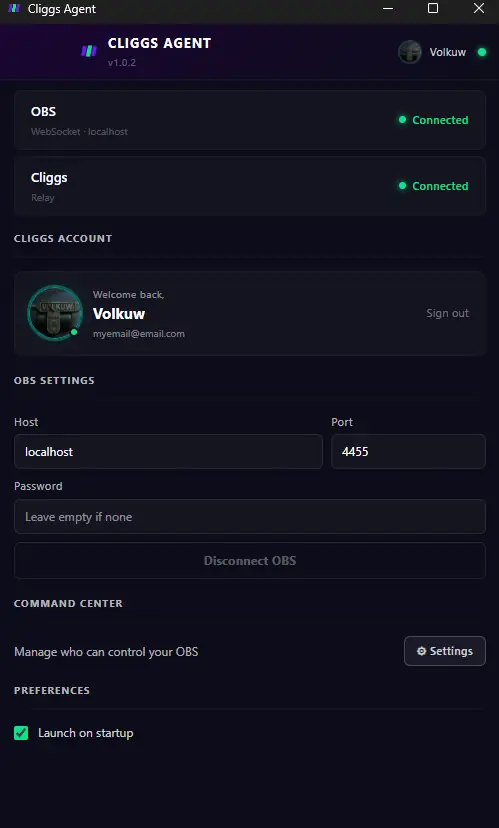
Once installed, the Agent's interface is deliberately simple:
- Connection status, at the top, two clear pills for OBS (WebSocket, localhost) and Cliggs (Relay), each showing green Connected once linked up.
- Cliggs account, right below, where you sign in, your name and email show up once you're logged in.
- OBS settings, where you point the Agent at your local OBS instance: Host, Port, and an optional Password, with a Disconnect OBS button once you're set.
- Command Center, a shortcut to manage who can control your OBS remotely.
- Preferences, including a Launch on startup toggle so the Agent is always running in the background.
No hunting through menus. Log in, connect OBS, done.
🔗 Connecting to Control Center
With Cliggs and OBS both linked inside the Agent, the desktop app's job is basically finished, it's running quietly in the background as the bridge. From here on, you work from the browser: head to the Cliggs website, log in, and open Control Center. This is your actual production dashboard, and it works from any device, not just the machine running OBS.
🔄 Syncing with OBS
The moment Control Center connects, it automatically pulls in your existing OBS scenes and sources. Nothing to rebuild or reconfigure, your setup shows up exactly as you already built it in OBS.
🎬 Remote scene switching, from anywhere
This is where the "remote" part becomes real: once your scenes are synced, you can switch between them live, straight from Control Center, from any browser on any device, and the card for whichever scene is live shows it clearly. You can also pick how the switch looks: a hard Cut or a Fade, with a duration you drag anywhere from 100ms to 3s. Step away from your main rig and you're still directing the show.
🎉 Live engagement tools
Below the scene switcher, Control Center opens into Live Tools: click any card and it goes straight to your OBS stream. There are five tabs, each built for a different kind of moment.
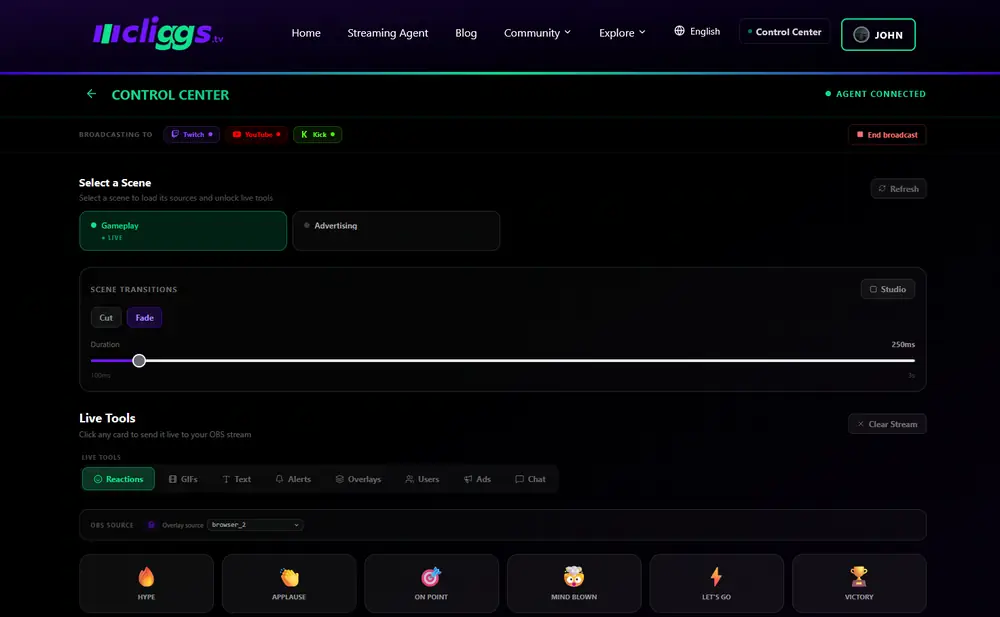
😄 Reactions — one-click emoji cards (Hype, Applause, On Point, Mind Blown, Let's Go, Victory) that pop up on stream the instant you click them.
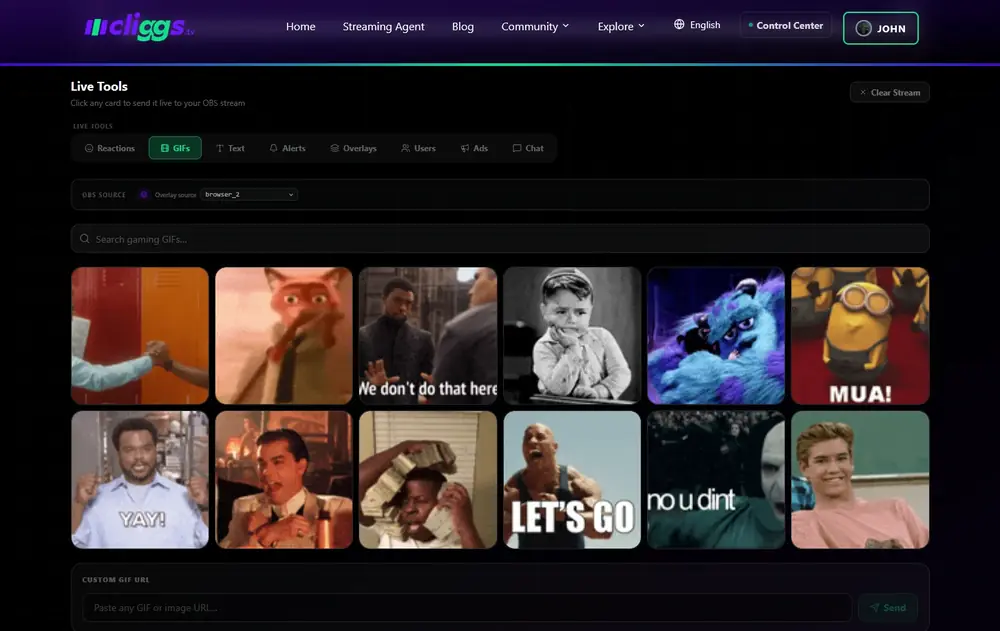
🎞️ GIFs — search gaming GIFs directly from Control Center, or paste a custom GIF or image URL, and send it live.
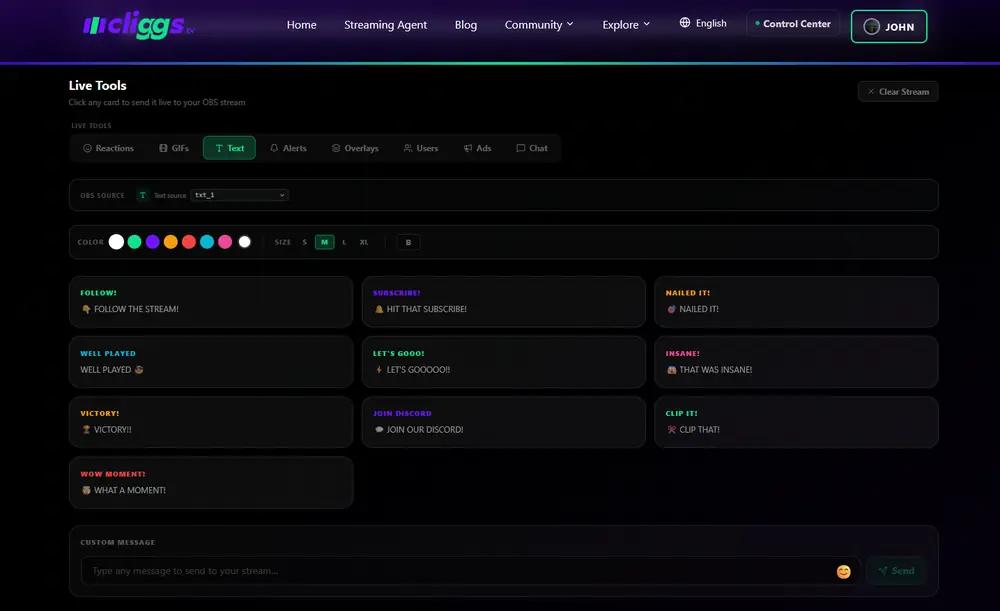
🔤 Text — a set of ready-made call-to-action cards (Follow, Subscribe, Nailed It, Well Played, Let's Gooo, Insane, Victory, Join Discord, Clip It, Wow Moment), plus a custom message field with color and size controls, for whatever you need to say that isn't already a card.
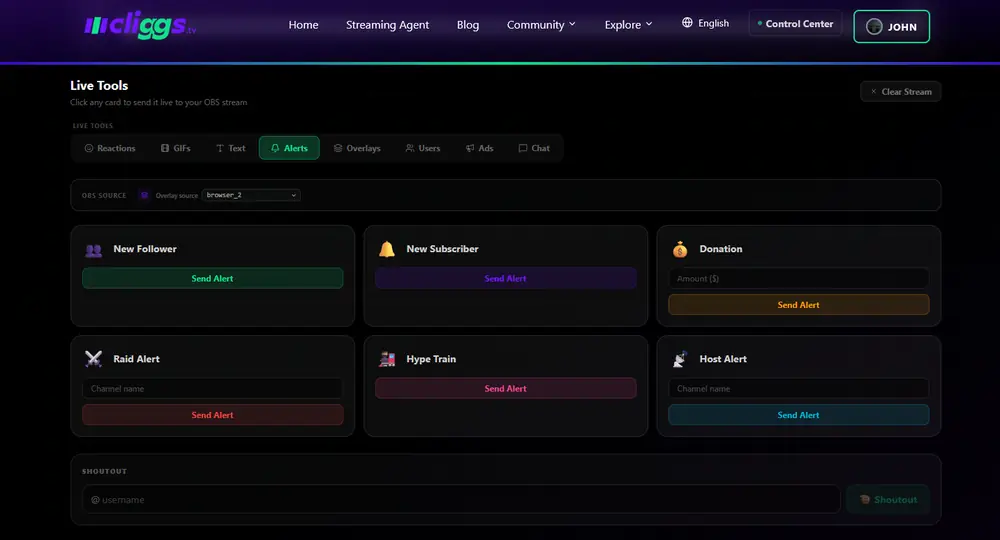
🔔 Alerts — New Follower, New Subscriber, Donation, Raid, Hype Train, and Host alerts, each a one-click Send Alert button, plus a dedicated Shoutout field for calling out a specific username.
🖼️ Overlays — visual overlays you can trigger on top of your stream the same way as everything else on this list, one click and it's live in OBS. See it in action in the full demo video.
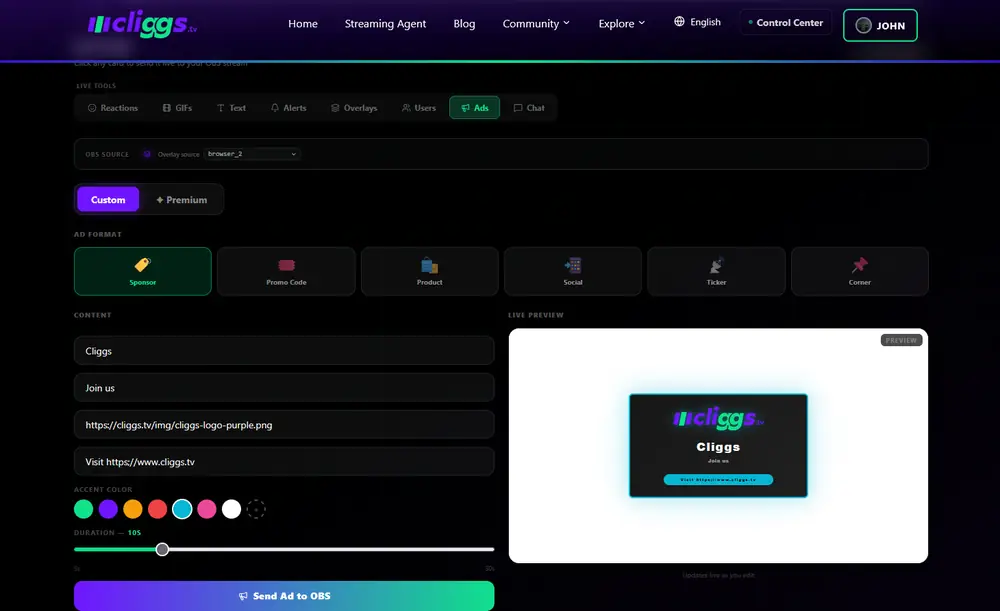
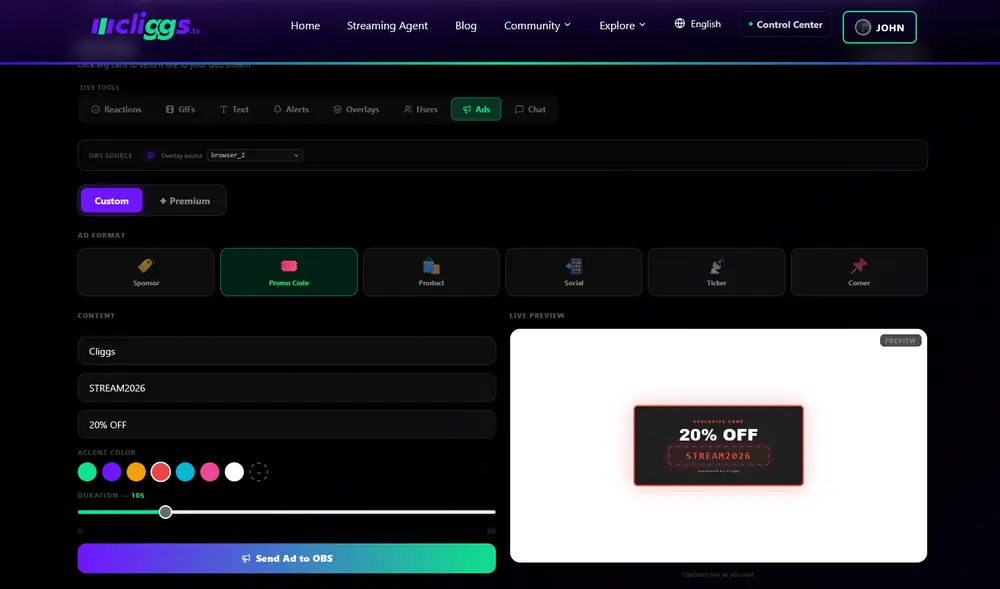
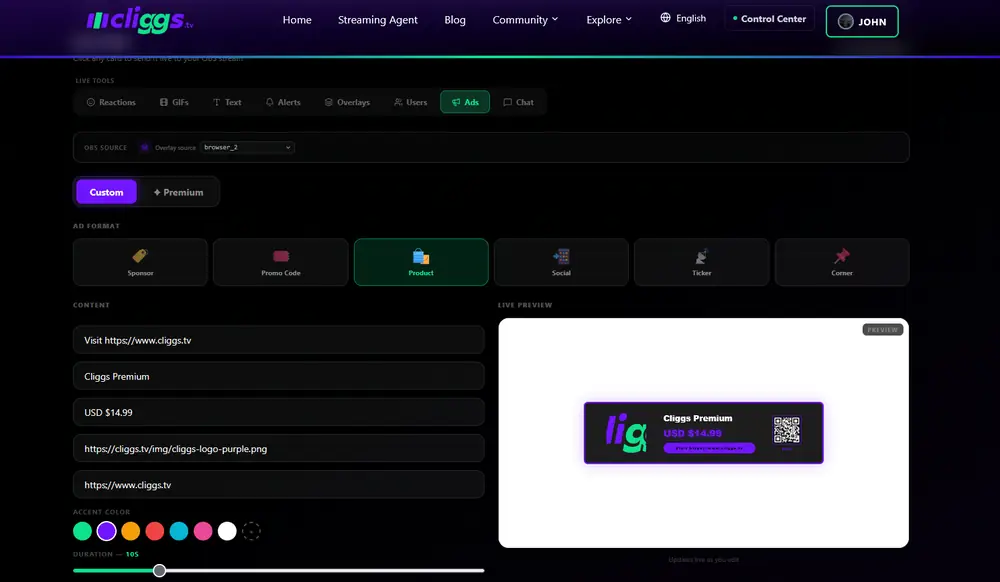
📣 Ads — the featured-announcement tool. Choose a format (Sponsor, Promo Code, Product, Social, Ticker, or Corner), fill in the content and an accent color, and a live preview updates as you type before you send it to OBS. It covers everything from a plain sponsor shout-out to a promo code banner to a full product card with pricing and a QR code.
🗂️ Event history, logged automatically
Every one of those triggers, every emoji, GIF, alert, and overlay, gets logged automatically in an event history. You get a full record of what fired and when, no manual tracking required.
💬 Unified live chat
If you've got Twitch and/or Kick connected, their chats merge into a single real-time feed inside Control Center. No more juggling two chat windows on two monitors, it's one stream of messages, in one place.
🔍 Search, preview, and send clips to OBS instantly
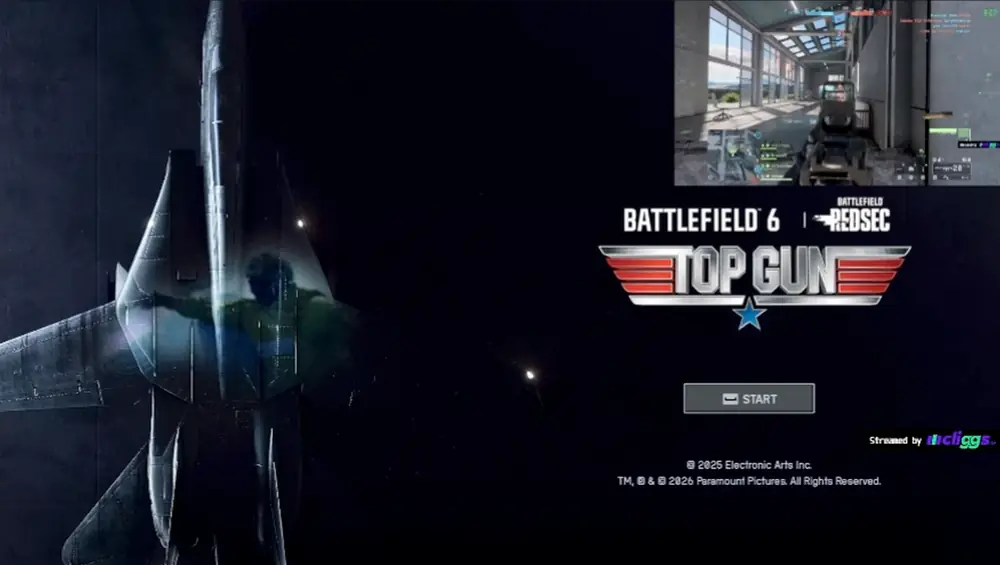
This is the standout feature. From inside Control Center, you can search a specific user's content in real time, gameplays and AI-suggested clips alike, preview them on the spot, and send a clip straight into OBS. No exporting, no editing software, no switching context. The clip goes from search result to live broadcast in seconds.
✂️ Selecting exact clip segments
You don't have to send a whole clip. Inside the preview, you can pick a specific segment, typically just a few seconds, and send only that portion. Precision without opening an editor.
▶️ The automatic "Replay" trigger
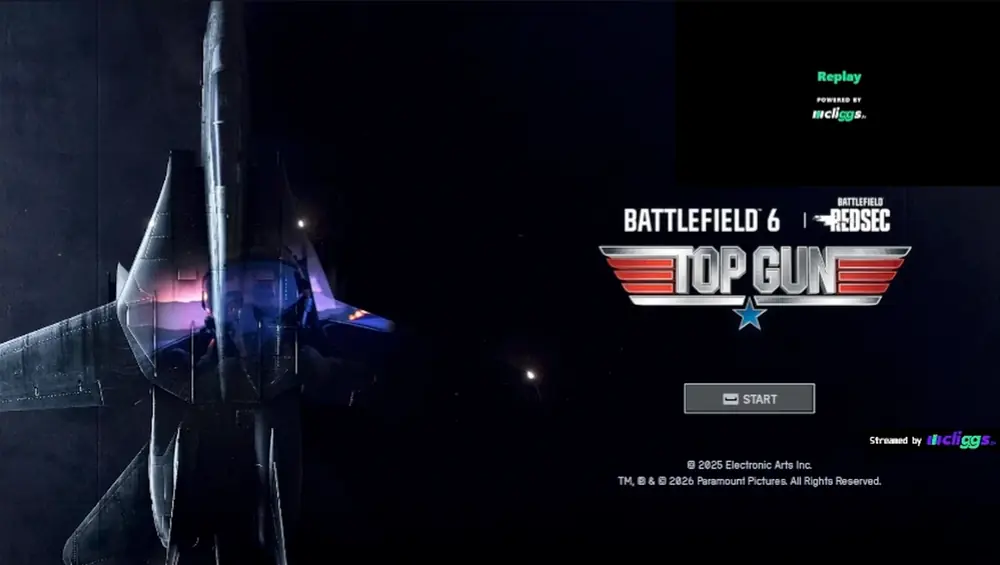
The moment a clip lands in OBS, an animated "Replay" graphic appears automatically in the overlay window, powered by Cliggs, before the clip itself takes over that same spot and plays. It's the same polish you'd expect from a broadcast production, without anyone manually cueing a graphic.
🌐 Built for more than gaming
Everything above works the same way regardless of what you're broadcasting. Gaming sessions, TV-style broadcasts, sports coverage, podcasts, the scene switching, engagement tools, and instant clip-to-OBS pipeline add the same production value no matter the content.
Why it matters
Most streamers either skip clip highlights entirely during a live broadcast, because pulling one up mid-stream means opening an editor and killing your pacing, or they hire someone whose whole job is running a second laptop just for that. The Agent plus Control Center replaces both: one connection to OBS, and a browser tab that gives you scene control, audience tools, and instant clips, from wherever you are.
Get started: install the Streaming Agent from cliggs.tv/agent, connect OBS, and open Control Center at cliggs.tv to run your next stream from anywhere.